
ImOn Whole Home Wi-Fi
ImOn Communications, LLCHouse & Home
4.232.00 Reviews
- Version
- 26.2.1
- Installs
- 10.00K
- Age Rating
- Everyone
Screenshots
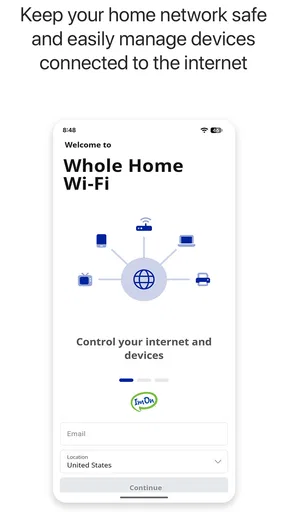
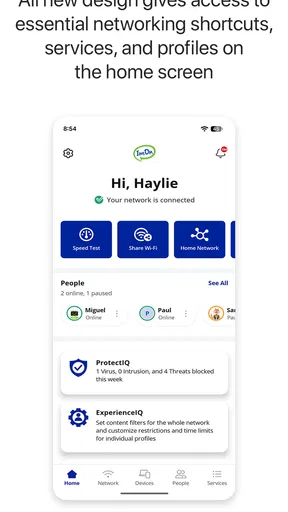
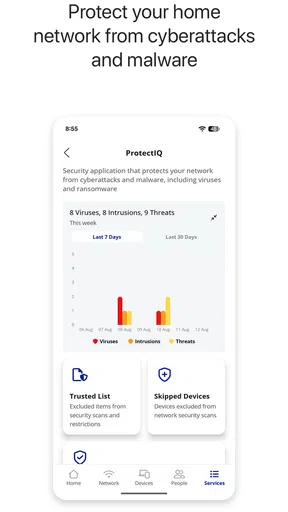
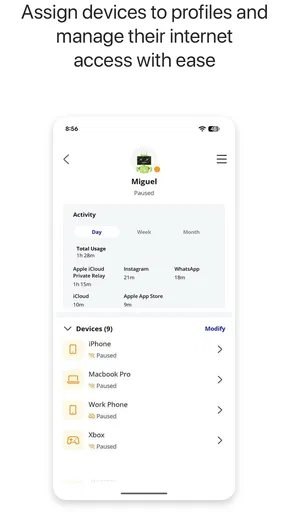
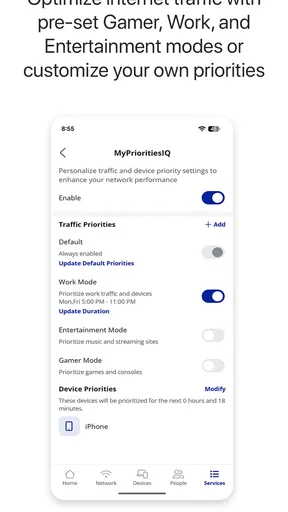
Our Review of ImOn Whole Home Wi-Fi
 Analysis by Appyee
Managing home internet from a phone sounds simple until a connection problem appears at the worst possible moment. A video call freezes, a child needs to finish homework, or a guest asks for the Wi-Fi password while I am trying to find the router. ImOn Whole Home Wi-Fi is designed for that kind of household situation: it is a free House & Home app from ImOn Communications, LLC that lets me monitor and control my home Wi-Fi network.
After spending time with the app, my impression is that its value depends heavily on whether ImOn is already your internet provider and whether you want phone-based access to network controls. It is not a general-purpose Wi-Fi analyzer for every router brand. Instead, it works best as a companion to a supported ImOn home network, putting everyday management tasks closer at hand than the router cabinet.
The important trust question is not simply whether an app can control Wi-Fi, but whether I understand what I am changing and who remains in control. In that respect, this app is most appealing to people who prefer visible, practical controls over technical router menus. It also deserves a measured review, because a network-management app sits close to sensitive parts of home life: connected devices, household schedules, and the moments when someone needs the internet to work immediately.
What the app is really for in a connected home
The clearest use case is routine oversight. Rather than walking to the router or opening a complicated browser-based administration page, I can use a phone as the starting point for checking the state of the home network and applying available controls. That can make a difference in a busy household where the person paying for internet service is not necessarily the person who installed the equipment.
I would describe the experience as household utility rather than entertainment. There is no reason to open it casually, but there are plenty of reasons to keep it available. A parent may want a quick way to review the home connection before a remote school session. A housemate may need to identify whether the issue is local to one device or affects the wider network. Someone hosting visitors may want to handle Wi-Fi access without explaining router labels and reset buttons.
The app has a straightforward identity in the store: ImOn Whole Home Wi-Fi, with a current version of 26.2.1 and support beginning with iOS 10. It is rated for Everyone, which fits the practical nature of the tool, although the person using it should still understand that network changes can affect other people in the home.
Its audience is also fairly specific. If I use ImOn service and want a more approachable way to manage the supplied home Wi-Fi equipment, this is a sensible place to start. If I use another provider, own a router from a different ecosystem, or want detailed wireless diagnostics, I would look toward the manufacturer’s app or a dedicated network utility instead. Choosing the right category of tool matters more here than downloading the most feature-packed option.
Trust starts with the account and the network relationship
A home-network controller naturally asks me to think about account responsibility. The person who signs in may be able to influence connectivity for everyone else, so I would avoid treating the app like a casual remote control. Before changing anything, I would make sure the account belongs to the household or to the person authorized to manage the ImOn service.
That is also why I would not hand my login to a visitor simply because they need access to Wi-Fi. A visitor needs network access, not administrative control. Keeping those roles separate is a small habit, but it prevents an ordinary sharing request from becoming a broader account-security problem.
The developer is clearly identified as ImOn Communications, LLC, which gives the app a direct relationship to the service it manages. I find that more reassuring than an unrelated utility claiming to control equipment it did not provide. Still, the developer relationship is not a substitute for careful use. I would review the sign-in screen, read any permission prompts, and pay attention to which actions require confirmation before proceeding.
The app’s adoption is modest but established, with over ten thousand installs, an average rating of 4.2, and fewer than a hundred ratings. I see those figures as useful context rather than a guarantee. They suggest that other customers are using it, but they are not enough to tell me how well it fits every home setup. Network equipment, account configuration, and phone settings can all shape the experience.
Controls are useful when they explain consequences
The main strength of a provider-linked app is convenience. A browser administration page can expose technical labels that make sense to an installer but not to a family member trying to solve a simple problem. A phone interface has the chance to present actions in a more understandable order, which is especially helpful when I am troubleshooting under pressure.
My preferred workflow is deliberately cautious. I first check whether the problem affects one device or the whole home. If only one phone, television, or laptop is struggling, I avoid immediately changing broad network settings. I inspect the local device, move it closer to the access point if practical, and only then consider a network-level action. This prevents a small device issue from becoming a household outage.
A second useful habit is to make one change at a time. If I alter several settings together, I cannot tell which action helped or created a new problem. With a management app, the temptation is to tap through every available control because the interface makes changes feel easy. The better approach is to pause after each meaningful action and check the result from the affected device.
This matters particularly when other people are working, studying, or using smart-home equipment. A quick reset may fix one connection, but it can also interrupt a meeting or disconnect a device that depends on continuous access. I would use the app’s controls as targeted tools, not as a substitute for diagnosis.
A realistic evening with the app
Imagine arriving home while a family member is preparing for an online appointment. The television is streaming, a phone is uploading photos, and a laptop suddenly reports that the internet is unavailable. My first move would be to open the app and check the home network rather than unplugging the router immediately.
If the app shows a broader connection problem, I know that restarting a single laptop will not solve it. If the issue appears limited to one device, I can focus on that device instead of disturbing everyone else. That distinction is more valuable than a long list of advanced settings because it helps me choose the least disruptive response.
I would also use the moment to check whether the problem is caused by a forgotten device or an unexpected connection, but I would avoid assuming that an unfamiliar device is automatically malicious. A guest’s phone, a streaming stick, a printer, or a recently replaced appliance can all look unfamiliar at first. Verification should come before removal or restriction.
Once the appointment is over, I would make any broader change only if it was necessary. This is where the app’s convenience has a trade-off: fast access can encourage fast decisions. The best experience comes from treating the phone interface as a clear dashboard, not as permission to experiment during someone else’s important call.
Data-sensitive moments deserve extra attention
Any network-management app operates in a context that can reveal something about the home, even when I am only checking connectivity. Device names may identify family members, rooms, work equipment, or personal habits. A list of connected products can show that a camera, game console, medical device, or smart speaker is present. I therefore treat the app as sensitive because of the role it plays, not because I want to make claims about practices that are not visible in the app itself.
When a permission request appears, I would read it instead of accepting automatically. The practical question is whether the requested access makes sense for the action I am trying to perform. If a permission seems unrelated to monitoring or controlling the home Wi-Fi, I would pause and investigate through the app’s own explanations or the provider’s support channels before granting it.
I would also avoid entering unnecessary personal details into device names. Naming equipment “Living Room TV” is more useful and less revealing than adding a full name, school, workplace, or other information that does not improve network management. Clear labels help me recognize devices while limiting the amount of personal context displayed on the screen.
Another good practice is to review the app in a private setting. A network screen can expose household information to anyone looking over my shoulder. That may sound minor, but shared phones, family tablets, and unlocked screens are common in real homes. A quick glance at connected equipment can be more revealing than a person expects.
I would apply the same caution when troubleshooting with support. Screenshots can contain device names, account identifiers, or network details. Before sharing one, I would crop or obscure anything that is not needed to explain the problem. This is a useful privacy step regardless of whether the issue is solved inside the app or escalated to ImOn.
User agency is more than having buttons
A control is genuinely useful when I can understand its reach, reverse it when appropriate, and tell whether it worked. That is the standard I would use with this app. A visible action is not automatically a good action if its effect on other household members is unclear.
For example, before applying a change that could interrupt the network, I would tell anyone currently relying on it. This is especially important in homes with remote workers, connected security products, or children completing assignments. A few seconds of communication can prevent the app from becoming the source of a new problem.
I also prefer keeping a simple mental record of changes: what I changed, when I changed it, and what improved afterward. This is one of the less obvious benefits of a disciplined workflow. If the same issue returns, I have a useful history to discuss with support instead of saying only that “the Wi-Fi stopped working.” It also helps me undo unnecessary changes rather than layering new ones over old ones.
Households with multiple adults should agree on who manages the network. If everyone changes settings independently, troubleshooting becomes harder and account access becomes less controlled. A single primary administrator, with other household members informed about basic steps, is usually a cleaner arrangement than sharing credentials widely.
I would not use the app as a surveillance shortcut. Network controls can help manage access and reliability, but they should not replace honest communication with family members or housemates. If a household uses restrictions, those rules should be explained clearly, particularly when they affect work, school, accessibility equipment, or emergency communication.
Where it fits beside ordinary alternatives
The usual alternative is a router’s web dashboard. That option may expose more technical information and can be valuable for someone who understands channels, bands, addressing, and firmware settings. Its weakness is accessibility: a browser interface often feels remote from the everyday problem. ImOn Whole Home Wi-Fi makes more sense for a customer who wants provider-connected household management without learning every networking term.
Another alternative is a third-party Wi-Fi scanner. Such tools can be better for examining signal strength, nearby networks, or interference, depending on the platform and permissions involved. They are not necessarily better for controlling the ImOn home setup. If my question is “why is this room slow?” a diagnostic tool may provide more insight; if my question is “can I manage the home network from my phone?” the ImOn app is more directly relevant.
Router-manufacturer apps occupy the middle ground. They may offer polished controls, device lists, and mesh management, but their usefulness depends on owning that manufacturer’s hardware. A provider-linked tool avoids that mismatch for ImOn customers. On the other hand, people who frequently replace networking equipment or combine products from several brands may prefer a hardware-neutral approach, even if it requires more manual work.
This comparison leads to a practical decision. I would choose the app for convenience, provider alignment, and household-level control. I would choose a more technical alternative when I need detailed diagnostics, equipment independence, or advanced configuration beyond the everyday management experience. Neither choice is universally superior; they serve different levels of involvement.
Small frictions that affect the recommendation
The biggest limitation is the provider relationship. The app’s purpose is tied to ImOn home Wi-Fi, so it is not the kind of download I would recommend to someone simply looking for a universal way to manage any wireless network. If my internet service or equipment changed, I would reassess the app rather than assuming it would remain useful.
A second limitation is that a simplified interface can hide complexity rather than remove it. A button may make a network restart easy, but it cannot explain every reason a signal is weak, a device is incompatible, or a service outage is occurring. I still need basic troubleshooting judgment. The app can shorten the path to an answer, but it cannot guarantee that every answer is available inside the phone.
There is also a human limitation: the person with the app may become the household’s unofficial help desk. That can be convenient at first, but it creates dependence if nobody else knows the basic account and network arrangements. I would share simple, safe troubleshooting guidance with other adults while keeping administrative access controlled.
Finally, I would keep the app updated through the normal store process and revisit its visible account and permission choices from time to time. The current version is 26.2.1, and software interfaces can change. A control that was easy to find today may be moved later, so I would not rely on an old screenshot or memory when making a sensitive change.
Who should install it, and who should pass
I recommend it to an ImOn customer who wants an approachable way to monitor and control the home Wi-Fi network from a phone. It is particularly suitable for households where the router is tucked away, several people share the connection, or the person responsible for internet service is not comfortable with technical administration pages.
It is also a good fit for someone who values quick situational awareness. Being able to check the network before restarting equipment, identify whether a problem is widespread, and make a deliberate change can save time during ordinary household disruptions. The free price removes the financial barrier, so the main question is compatibility with the ImOn setup rather than whether the app is worth a separate purchase.
I would skip it if I am not an ImOn customer, if I need a detailed wireless survey, or if I expect a single app to manage a mixed collection of unrelated routers and access points. I would also avoid relying on it as my only troubleshooting method if my home depends on critical connected equipment. In those cases, provider support, hardware documentation, or a more specialized diagnostic tool may be the better choice.
My cautious verdict
ImOn Whole Home Wi-Fi is a focused utility with a clear place in an ImOn-connected home. I like the idea of bringing network oversight to a familiar device, especially when the alternative is finding a router label or navigating a technical browser panel. Its strongest quality is not novelty; it is the possibility of making ordinary network decisions more understandable and less disruptive.
My recommendation comes with a deliberate boundary: use it as a management aid, not as a reason to make broad changes without checking who else is online. Pay attention to permissions, keep device labels restrained, protect the account, and make one change at a time. Those habits improve the experience and preserve control over the information and connectivity that matter inside a home.
With an Everyone age rating, a free download, and a release history beginning in August 2022, it is easy to try for the right ImOn household. The app has earned a 4.2 average from its user ratings, but I would treat that as background rather than a promise that every setup will behave identically. My final view is positive but targeted: it is a sensible companion for ImOn customers who want practical, phone-based Wi-Fi control, but it is not the right tool for universal networking or deep technical diagnosis.
Verdict
Strengths of ImOn Whole Home Wi-Fi
- Simple setup through the companion app
- Helps eliminate Wi-Fi dead zones across larger homes
- Supports managing connected devices from one place
- Mesh system can provide more consistent coverage
- Useful parental controls and network access management
Limitations of ImOn Whole Home Wi-Fi
- Requires compatible ImOn service and equipment
- Advanced networking options may be limited
- Performance depends on home layout and internet plan
- Some features may require an active customer account
- Troubleshooting can be difficult without provider support
Similar Picks in This Category
View All
Universal TV Remote Control
CodeMatics Media Solutions3.9

AlfredCamera Home Security app
Alfred Systems Inc.4.7

Planner 5D: AI Home Design
Planner 5D4.5

Universal Tv Remote-Cast to TV
One Music Player4.1

Zillow: Homes for Sale & Rent
Zillow Group4.8

99acres Buy/Rent/Sell Property
infoedge.com4.3
Frequently Asked Questions
What is ImOn Whole Home Wi-Fi?
ImOn Whole Home Wi-Fi is a companion app for managing a compatible ImOn home internet and Wi-Fi service. After signing in, users can typically view their network, check connected devices, manage profiles, and adjust available settings from a phone or tablet. The exact tools depend on the customer’s ImOn plan, gateway, and installed whole-home Wi-Fi equipment.
What can I do with the ImOn Whole Home Wi-Fi app?
The app is designed to make everyday network management easier without requiring users to open a web browser or contact support for basic tasks. Depending on the supported hardware, you may be able to see which devices are online, rename them, create user profiles, pause internet access, set schedules, manage guest access, and review network information. Some options may vary by account.
Do I need to be an ImOn customer to use ImOn Whole Home Wi-Fi?
Yes. ImOn Whole Home Wi-Fi is intended for customers who have an eligible ImOn internet service and compatible Wi-Fi equipment. Downloading the app alone does not provide internet access or unlock its management features. You will generally need your ImOn account credentials and an installed supported gateway or whole-home Wi-Fi system. Contact ImOn if you are unsure whether your equipment qualifies.
Can ImOn Whole Home Wi-Fi help improve my wireless coverage?
The app can help you understand and manage your home network, but it cannot physically increase Wi-Fi coverage by itself. Coverage improvements depend on the gateway, mesh access points, home layout, construction materials, and placement of the equipment. If your service includes compatible whole-home Wi-Fi hardware, the app may help monitor the network or identify connected equipment, while ImOn support can assist with persistent coverage problems.
Is ImOn Whole Home Wi-Fi free to download and safe to use?
The application may be available to download without a separate app purchase, but access to its features normally depends on having an eligible ImOn service, and whole-home Wi-Fi equipment or related services may involve plan charges. For safety, install it only from the official Google Play Store or Apple App Store, verify the developer information, and review requested permissions before signing in with your ImOn account.
